


 Sign in with Google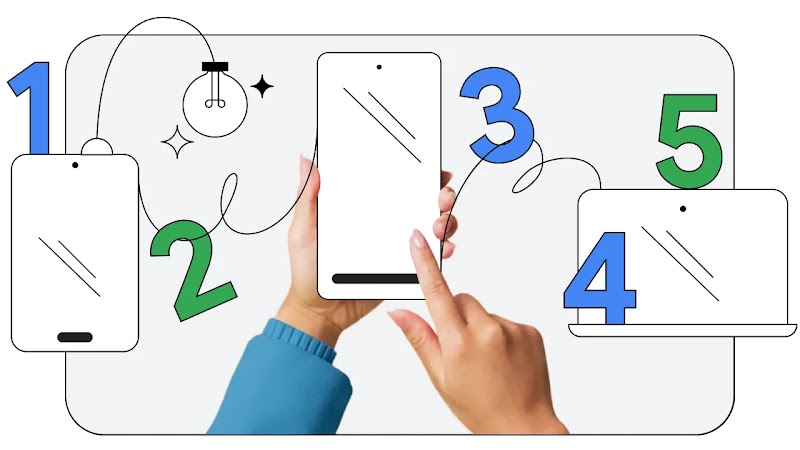
Laura Mae Martin is Google’s executive productivity advisor. Over the last six years she has led Google’s productivity program, sharing weekly productivity tips to thousands of her Google colleagues. Her training sessions have helped build an understanding of how AI tools are improving daily workflows.
I don’t think there will be many — if any — readers unfamiliar with CTRL+C, CTRL+V (or cmd, for you Macbook users) as a keyboard shortcut for copy and paste. It might have been the very first thing you learned when getting to grips with working with computers. Think how much time it saved you. And think how synonymous it has become.
Since then, Google’s suite of workspace apps has added hundreds of functions and shortcuts, with the underlying core technology of the Gemini model built-in, to act as a powerful collaborative partner and productivity booster.
Here are five of my favorite workflow tools which have helped me and thousands of my colleagues. They’re ridiculously simple to use. I’d even say they have revolutionised how I work.
1. Draft an email — and send it — using Google Docs
This tip is great if you want to use Google Docs formatting in an email, or if you need to draft a detailed email as a group, and want to get comments and suggestions before sending it.
There’s no need to copy and paste anything. You can use the email template in Docs that transfers right to Gmail.
How it works: In a Google Doc, type the @ symbol. From there you’ll see a drop down menu, choose “Email draft”. A template will populate in which you can type the recipients (type @ to search individuals) and content of an email. Once you’re finished, click the envelope button in the upper lefthand corner. An email draft will be auto populated from your Doc into Gmail, ready for you to send.
Watch the video
2. Get notified when someone edits your Google Doc
Picture the scene: you’ve just finished working on the perfect doc. You’re all set to send it out to a huge group — with edit access. It can be daunting to follow all the amends that might follow.
With revision history you can see who changed what, and see exactly who changed specific parts of a paragraph. But you can also get an email as soon as someone edits the doc.
How it works: In a Google Doc you own, click on Tools, Notification settings, then Added or removed content. Then press save. You’ll receive an email as soon as someone edits the content.
Watch the video
3. Catch me up in Drive
Google’s AI Summary tools, powered by Gemini, are saving me heaps of time. From the notetaking functionality in Google Meets, to smart summarization in Google Docs, I can quickly digest new content and get to work on those next steps.
The Catch me up shortcut goes one step further. It gives me an AI summary of what updates I’ve missed in a document without even opening it.
How it works: On your Drive homepage (drive.Google.com) search for a specific document and click the “Catch me Up button”. From there the side panel will pop up with important information about what has been changed or updated in the doc since you last opened it.
You can also click the “Catch me up” button immediately on your Drive homepage to be updated on all your top documents. Personally, I like to go into my Starred documents and get caught up there.
Watch the video
4. Organize Chrome tabs
If you’re like me, your Chrome browser might look like a teenager’s bedroom floor. Cluttered with tabs for inspiration, reference documents I’m working on, and things that I said I’ll come back and read when I have time (spoiler alert: I haven’t read it yet).
Or at least that’s what I used to see when opening my browser. Now, my desktop has had the Feng Shui treatment, with all my open tabs neatly organized together, labeled, and searchable from the address bar.
How it works: In Chrome, right click on a tab you want to organize. From there, create a new tab group (or add to an existing tab group). Once you’ve grouped tabs you can change group colors, click tab group names to expand and collapse those tabs, and even move a tab group to its own window. You can also type @tabs into the address bar and search for an open tab.
Watch the video
5. Ask Gemini to add events to my calendar for me
I love this tip, because I use it both at work and at home. In work, I might be given a timeline with key project milestones. At home, I might get a PDF for a school calendar or next year’s dates for my book club.
I can upload the PDF to the Gemini app and ask it to convert it into the right format to then import straight into my Google Calendar.
How it works: Head over to Gemini, and submit the following prompt, swapping in your specifics:
“Hey Gemini, here is a PDF of my project’s key timelines *uploads file*. Create a Google Sheet for me with all the dates on it, using the format described in this article for .csv files that I can import into Calendar.”
Once you have the .csv file, you can then ask Gemini to import the dates to your Calendar.
Watch the video
These are just some ideas to get you started. There are so many more amazing little features already integrated within the Google apps you may already use. They can help you take control of your working day, save you time, and allow you to focus on the more important aspects of your work.