



 Sign in with Google
 How to showcase your products across Google
Learn how to add, optimise, and promote your products across Google Search, Maps, YouTube, and more with Merchant Center.
Play animation
Pause animation
Create your Merchant Center account
Provide basic information about your business like its name, phone number, and website.
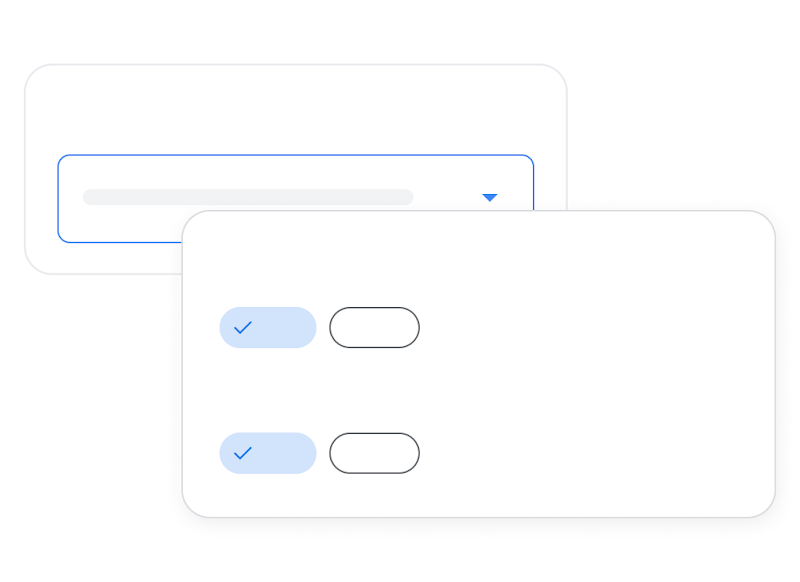
Add your products to Google
Once you add your product information to Merchant Center, your products can appear organically when customers search for products or businesses like yours on Search, Maps, and more.
Add products from your website
Google can automatically add products that are listed on your website.
Add products with a file
Create a file that contains all of your product details (title, description, price, and more).
Link your e-commerce store
If you use one of our partner e-commerce providers like Shopify, you can link your store to automatically sync your products to Google.


Get personalised insights
Get tailored insights on top products and pricing to meet demand, manage inventory, and boost sales effectively.
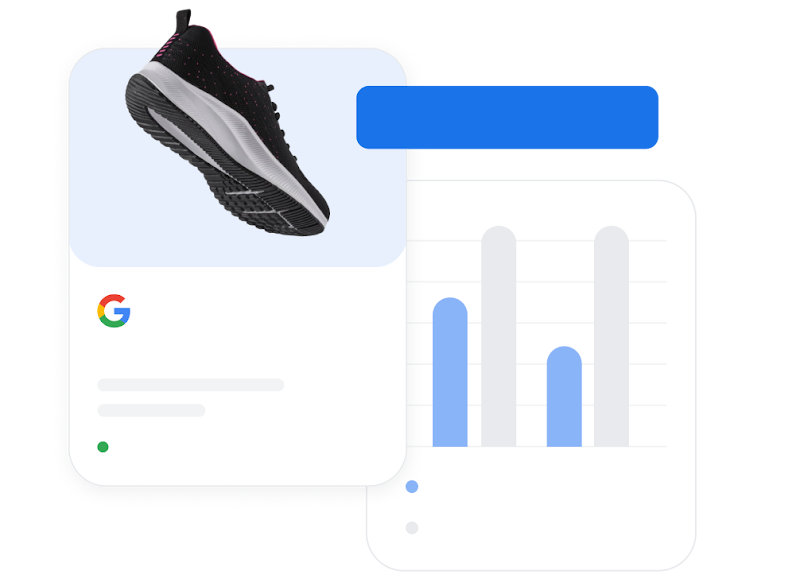
Boost sales with paid ads
When you’re ready, you can further promote your products with Performance Max, our powerful advertising campaign that uses Google AI to reach the right customers at the right time to drive greater reach and more sales. You stay in full control of your budget and only pay when someone engages with your ad.
